How to Design a DTF Gang Sheet Without Wasting Space
How to Design a DTF Gang Sheet Without Wasting Space
Ordering DTF transfers can be a practical way to create custom T-shirts, hoodies, business uniforms, and promotional apparel. But when you need several designs, printing them separately may not always be the most efficient option.
That's where DTF gang sheets come in.
A DTF gang sheet allows you to arrange multiple graphics on one larger sheet of transfer film. By planning your layout carefully, you can make better use of the available printing area while keeping your designs properly sized and ready for production.
However, placing graphics too close together, using incorrect dimensions, or uploading low-resolution artwork can create problems.
In this guide, ExpressPress explains how to design a DTF gang sheet without wasting space, including artwork preparation, sizing, spacing, layout organization, and common mistakes to avoid.
What Is a DTF Gang Sheet?
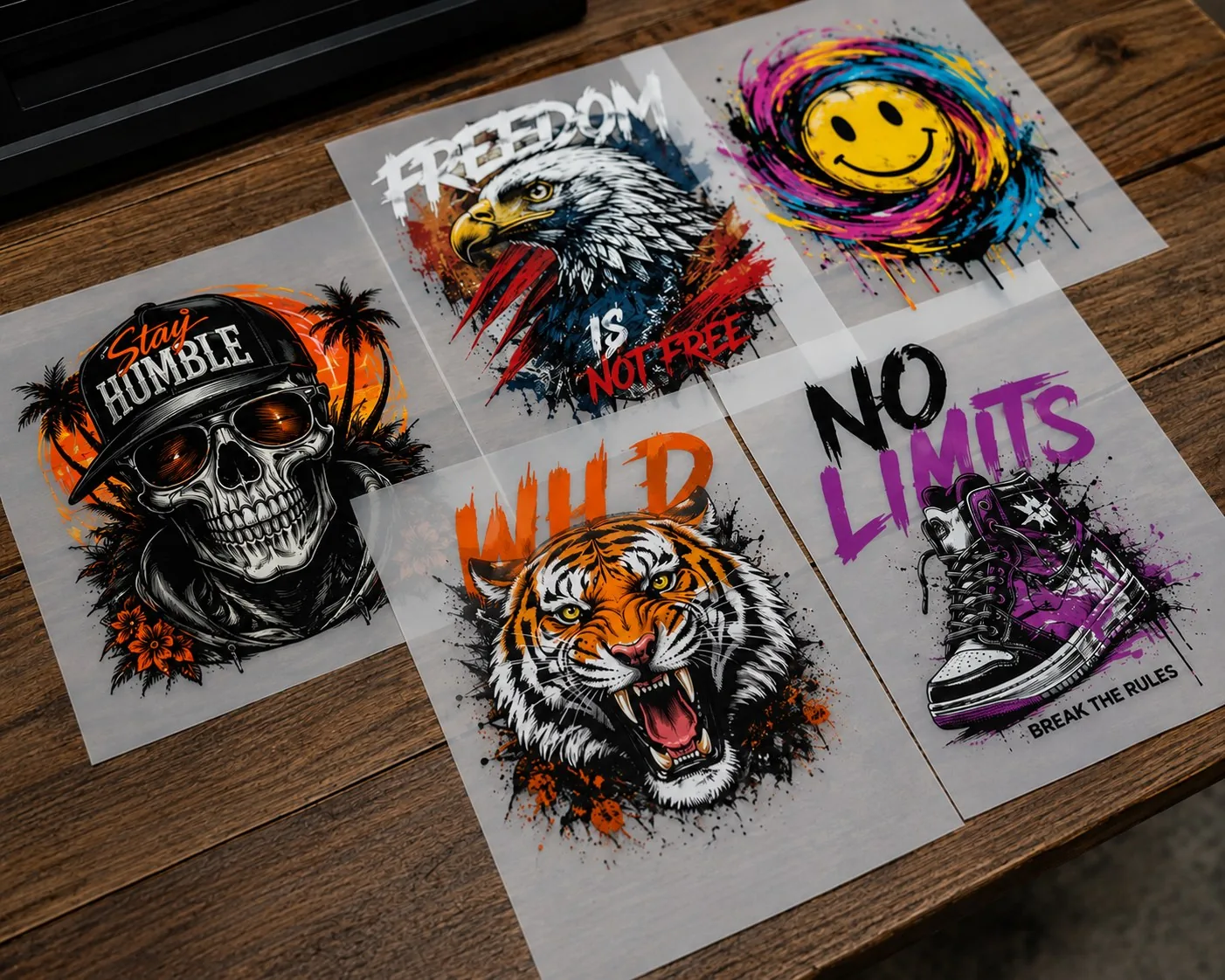
A DTF gang sheet is a larger sheet of transfer film containing multiple printed designs.
Instead of printing every logo, illustration, or graphic on a separate sheet, several designs are arranged together in one layout.
For example, a gang sheet might contain:
Multiple company logos
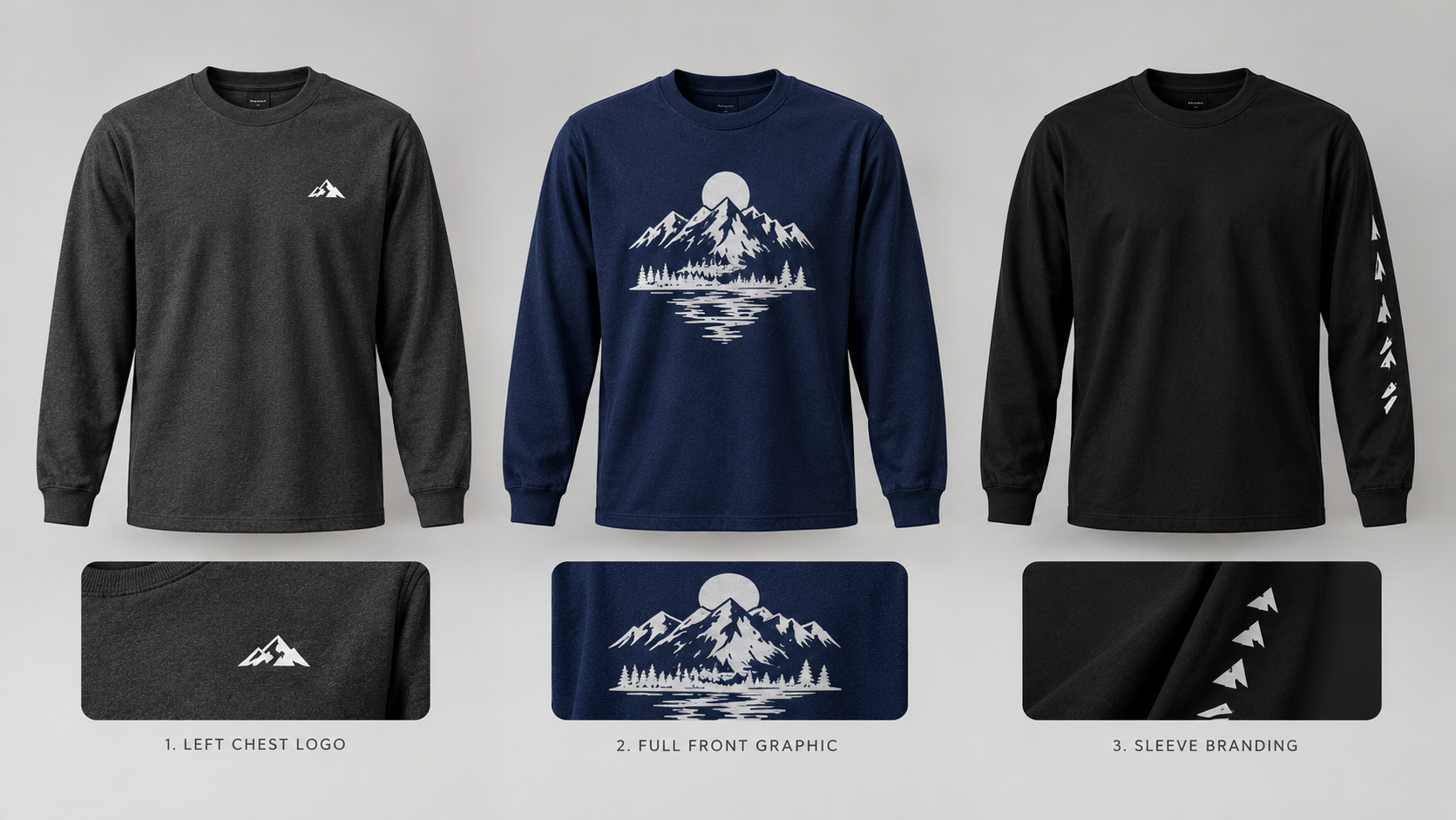
Small left-chest designs
Full-front T-shirt graphics
Sleeve artwork
Different sizes of the same design
Promotional merchandise graphics
After printing and processing, individual transfers can be separated and applied to compatible garments using the appropriate heat-press instructions.
Gang sheets are useful for businesses, clothing brands, printing shops, schools, and organizations that need multiple transfers.
Why Is Gang Sheet Layout Important?
The layout determines how efficiently the available sheet area is used.
Poorly arranged artwork can leave large empty spaces, reduce the number of designs that fit, or create difficulties when separating individual transfers.
A well-organized gang sheet can help you:
Fit multiple designs within the available dimensions
Reduce unnecessary unused space
Maintain consistent print sizes
Organize artwork for easier cutting
Prepare transfers for multiple garments
Avoid overlapping or cropped graphics
Efficient layout does not mean placing every design as close together as possible.
You still need adequate spacing and safe margins based on the printing provider's requirements.
Step 1: Choose the Right DTF Gang Sheet Size
Before arranging artwork, determine the available sheet dimensions.
DTF gang sheet providers may offer different widths and lengths depending on their printing equipment.
Some use fixed sheet sizes, while others allow customers to select longer sheets.
Consider Your Design Quantity
If you're printing only a few small logos, a shorter gang sheet may be sufficient.
If you're preparing multiple full-front T-shirt graphics, you'll likely need more printing area.
Consider the Final Print Dimensions
A small chest logo uses much less space than a large back graphic.
Before selecting a sheet size, calculate approximately how much space your designs require.
Avoid Choosing a Sheet Based Only on Price
A cheaper, smaller sheet may not be economical if it cannot accommodate all your artwork.
Compare the available dimensions and total cost before ordering.
Step 2: Prepare Your Artwork Before Building the Gang Sheet
For additional guidance, see our print-ready artwork file format guide.
High-quality artwork is essential for successful DTF printing.
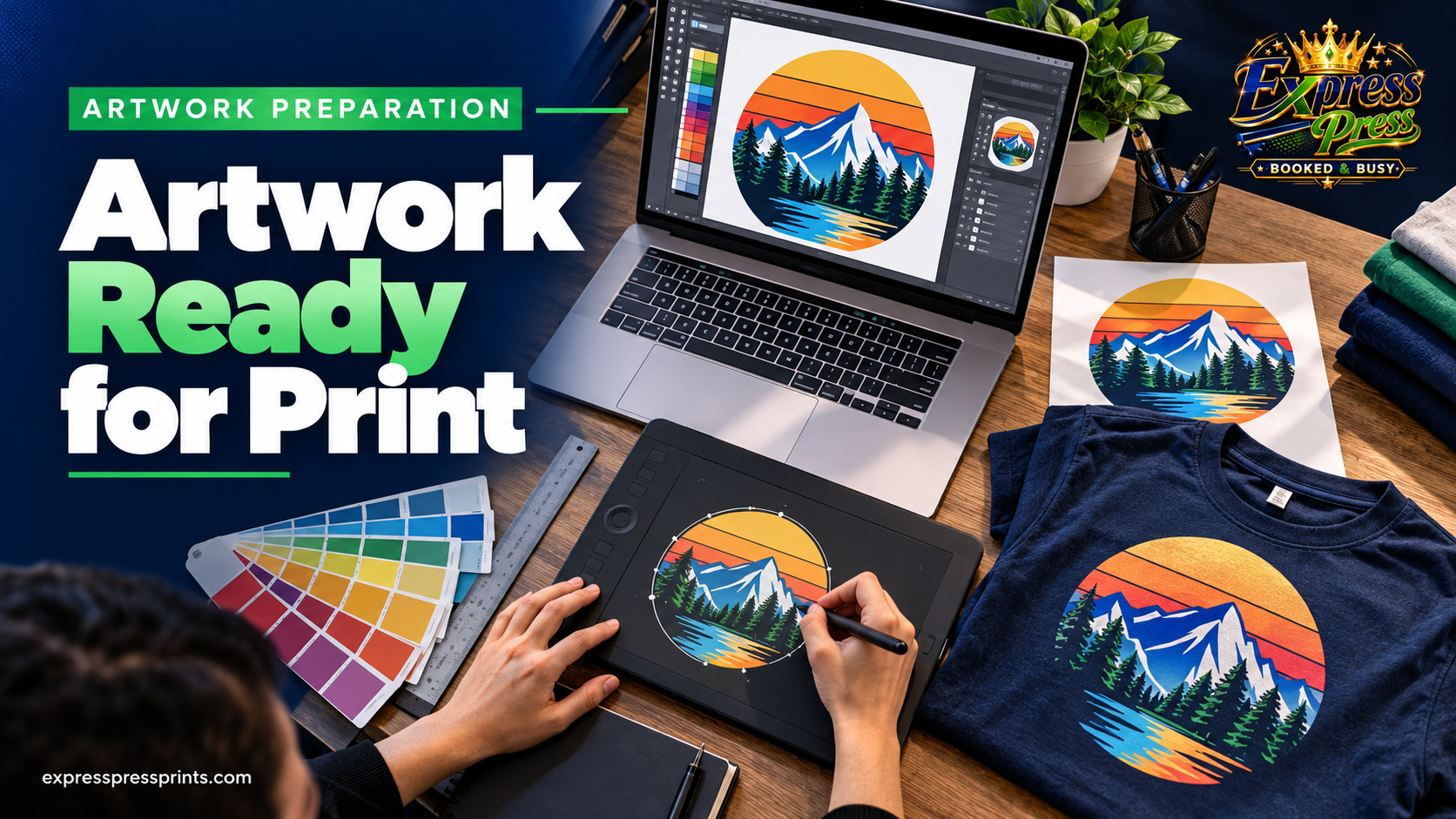
Before uploading designs, check the following.
Use High-Resolution Artwork
For raster designs, approximately 300 PPI at the intended print dimensions is a useful target.
For example, a design that will print 10 inches wide should ideally have around 3,000 pixels of width at 300 PPI.
Use Transparent Backgrounds
Transparent PNG files are commonly used for DTF artwork.
They help prevent unwanted rectangular backgrounds from becoming part of the printed design.
Check Fine Details
Very small text, thin lines, and delicate design elements may not reproduce as expected.
Inspect each graphic at its final printing size.
Remove Unnecessary Empty Space
Some image files contain large transparent margins around the actual artwork.
These margins can make arranging designs more difficult and may cause a design to occupy more layout space than necessary.
Crop unnecessary transparent space without cutting off any intended artwork.
Step 3: Determine the Correct Size for Each Design
Every design should be sized according to its intended garment placement.
For example, a small business logo on the left chest should not automatically use the same dimensions as a large front graphic.
Common Design Placement Types
Left chest designs: Small logos used for business uniforms and subtle branding.
Full-front designs: Larger graphics for T-shirts, hoodies, and promotional apparel.
Back designs: Company names, event graphics, and larger branding elements.
Sleeve designs: Smaller logos, text, or decorative details.
The correct size depends on the garment, available print area, and customer preference.
Always confirm the final physical dimensions before placing the artwork on the gang sheet.
Step 4: Arrange Large Designs First
One useful layout strategy is to place your largest graphics before adding smaller ones.
Large designs are harder to fit into leftover spaces.
Start by arranging full-front or back graphics, then use the remaining space for smaller logos and sleeve designs.
For example, you might place two large T-shirt graphics near the top of the sheet and fill suitable remaining areas with smaller company logos.
This approach can reduce awkward gaps and make the layout easier to organize.
Step 5: Fill Remaining Spaces With Smaller Graphics
After positioning large designs, review the unused areas.
Smaller graphics can often fit into spaces that are unsuitable for larger artwork.
Useful options include:
Small left-chest logos
Sleeve graphics
Brand icons
Short text designs
Small promotional graphics
Additional copies of existing artwork
However, don't add unnecessary graphics simply to fill space.
Only include artwork you intend to use, and maintain the required spacing between transfers.
Step 6: Maintain Proper Spacing Between Designs
Spacing is essential for separating transfers after printing.
If designs are too close together, cutting them apart may become difficult.
The required gap depends on the printing provider's production process and cutting recommendations.
Why Spacing Matters
Adequate spacing helps prevent:
Accidental cutting into artwork
Overlapping transfer areas
Difficult handling
Unintended design damage
Confusion when separating transfers
There is no universal spacing measurement that applies to every DTF printing workflow.
Follow the gang sheet provider's specific requirements.
Step 7: Avoid Overlapping Artwork
Every design should remain inside its intended layout area.
Overlapping graphics can create unwanted printed elements or make individual transfers difficult to separate.
Before submitting your sheet, inspect the layout carefully.
Check that:
No designs overlap
Artwork stays inside the printable area
Transparent margins are appropriate
All design elements are visible
Individual transfers can be separated safely
Step 8: Rotate Designs When Appropriate
Rotating artwork can sometimes help improve layout efficiency.
For example, a tall narrow design may fit better beside a wide graphic when rotated.
However, rotation should not distort the design.
Maintain the original proportions and ensure that the artwork remains at its intended physical print size.
Also confirm that your printing provider's workflow supports the selected orientation.
Step 9: Duplicate Designs for Multiple Orders
If you need several copies of the same logo or graphic, gang sheets can help organize those quantities.
For example, a business preparing employee uniforms might need:
15 left-chest company logos
10 large back graphics
5 sleeve logos
These designs can be arranged on one or more gang sheets depending on their sizes and the available printing area.
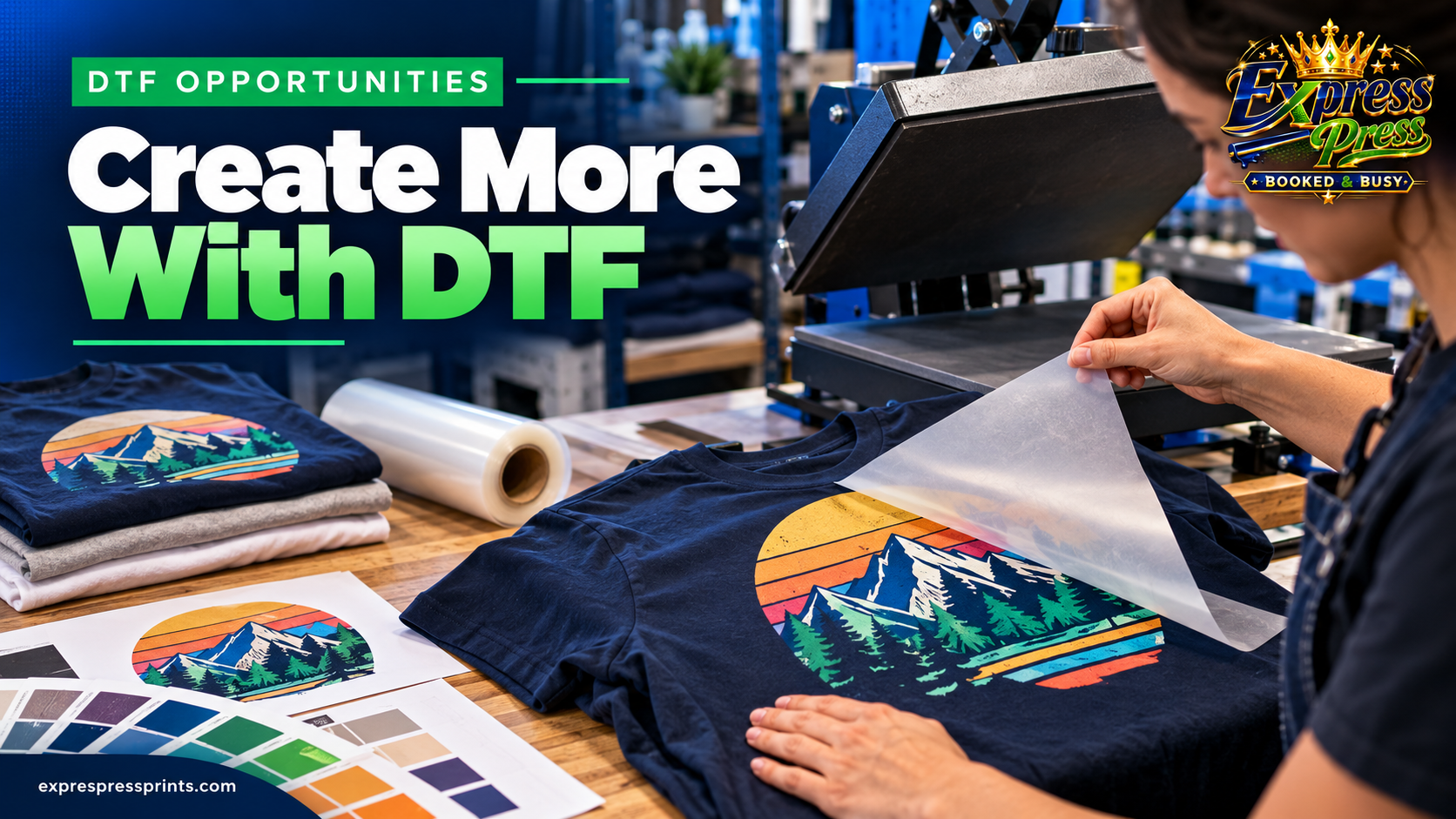
Always count each design carefully before submitting the final layout.
Step 10: Review the Final Gang Sheet Before Ordering
A final review can help prevent expensive mistakes.
Before submitting your gang sheet, confirm the following:
The selected sheet dimensions are correct.
Every design is the intended physical size.
Artwork resolution is sufficient.
Transparent backgrounds are correct.
No graphics overlap.
Spacing meets the printing provider's requirements.
All designs remain inside the printable area.
Quantities are correct.
No unwanted artwork is included.
The final layout has been inspected at full size.
Taking a few minutes to review your design can reduce avoidable production issues.
Common DTF Gang Sheet Layout Mistakes
Leaving Large Empty Gaps
Poorly arranged designs may waste printable space.
Try placing larger artwork first and organizing smaller designs around it.
Using Low-Resolution Images
A design may look acceptable when viewed small but become blurry when printed at full size.
Use original high-resolution artwork whenever possible.
Incorrect Design Dimensions
A design that is too large or too small may not fit the intended garment.
Always confirm physical print dimensions.
Overcrowding the Sheet
Trying to squeeze too many designs together can create cutting and handling problems.
Maintain appropriate spacing.
Forgetting to Count Duplicates
When placing multiple copies of a logo, verify that the quantity matches your order requirements.
Ignoring Transparent Margins
Excessive empty space inside image files can make layouts inefficient.
Crop unnecessary transparent margins carefully.
Skipping the Final Preview
Always inspect the completed layout before ordering.
How to Use a DTF Gang Sheet Designer
For additional guidance, see our DTF gang sheet ordering guide.
An online gang sheet designer allows customers to upload artwork and arrange multiple graphics within a selected sheet size.
A typical workflow includes:
1. Select Your Gang Sheet
Choose an available DTF gang sheet size.
2. Upload Your Artwork
Add your logos, illustrations, or custom designs.
3. Adjust Design Dimensions
Set the intended printing size for each graphic.
4. Arrange Your Layout
Move and organize designs to make efficient use of the available space.
5. Duplicate Artwork if Needed
Add additional copies of designs when required.
6. Review the Final Layout
Check spacing, dimensions, artwork quality, and quantities.
7. Submit Your Order
Complete the available ordering process after confirming your design.
ExpressPress offers a DTF Gang Sheet Designer for customers preparing custom transfer layouts.
Are DTF Gang Sheets More Cost-Effective?
Gang sheets can be economical when several designs are printed together.
However, savings depend on the sheet size, number of designs, printing provider, and total order requirements.
For example, arranging multiple small logos on one sheet may use the available printing area more efficiently than ordering separate transfers.
On the other hand, a poorly planned layout may leave unused space or require additional sheets.
The goal is to balance efficient space usage with correct sizing and safe production margins.
Who Should Use DTF Gang Sheets?
DTF gang sheets can be useful for several types of customers.
Small businesses: Prepare multiple company logos for employee uniforms.
Clothing brands: Organize different graphics for apparel collections.
Printing shops: Combine artwork from multiple projects.
Schools and teams: Prepare graphics for group apparel.
Event organizers: Print multiple designs for promotional merchandise.
Independent creators: Organize custom graphics for small apparel runs.
You can also explore custom DTF gang sheets and online gang sheet designer for related printing information and available ExpressPress options.
Design DTF Gang Sheets With ExpressPress
ExpressPress provides DTF printing and gang sheet services for businesses, organizations, clothing brands, and individual creators.
Based in Thomasville, Alabama, ExpressPress offers a gang sheet design workflow for customers preparing multiple graphics for custom apparel projects.
Whether you're arranging company logos, T-shirt designs, or promotional artwork, planning your gang sheet carefully can help you make better use of the available printing area.
Explore ExpressPress DTF Gang Sheets and the Gang Sheet Designer to begin preparing your next project.
Ready to create your DTF gang sheet? Visit ExpressPress and start arranging your designs today.
Frequently Asked Questions About DTF Gang Sheets
What is a DTF gang sheet?
A DTF gang sheet is a larger transfer sheet containing multiple designs arranged together for printing.
How do I fit more designs on a gang sheet?
Place large designs first, use smaller graphics to fill suitable gaps, crop unnecessary transparent margins, and maintain proper spacing.
Can I put different designs on one DTF gang sheet?
Yes. Gang sheets can contain multiple different graphics, provided they meet the printing provider's layout requirements.
Can I duplicate the same logo on a gang sheet?
Yes. Multiple copies of the same design can be arranged on one sheet.
What file format should I use for a DTF gang sheet?
High-resolution transparent PNG files are commonly used. Other formats may be accepted depending on the printing provider's design tools.
How much space should I leave between DTF designs?
Spacing requirements vary by provider and production workflow. Follow the specific instructions supplied by your printing service.
Can I rotate designs to save space?
Yes, rotating designs may help improve layout efficiency when it does not distort the artwork or interfere with production requirements.
Are DTF gang sheets good for small businesses?
They can be useful for businesses that need multiple logos, uniform designs, or promotional graphics prepared together.